
Remote Gaming and Video editing with Proxmox GPU passthrough
This article will show you how to configure GPU passthrough in Proxmox

Kevin Stevenson
Are you a PC enthusiast wanting to play around with virtualization and have you just recently upgraded to a 3000 series RTX card and don't know what to do with your 2000 series well I have a project for you.
I am going to assume you have a Proxmox Host with an extra GPU setup.
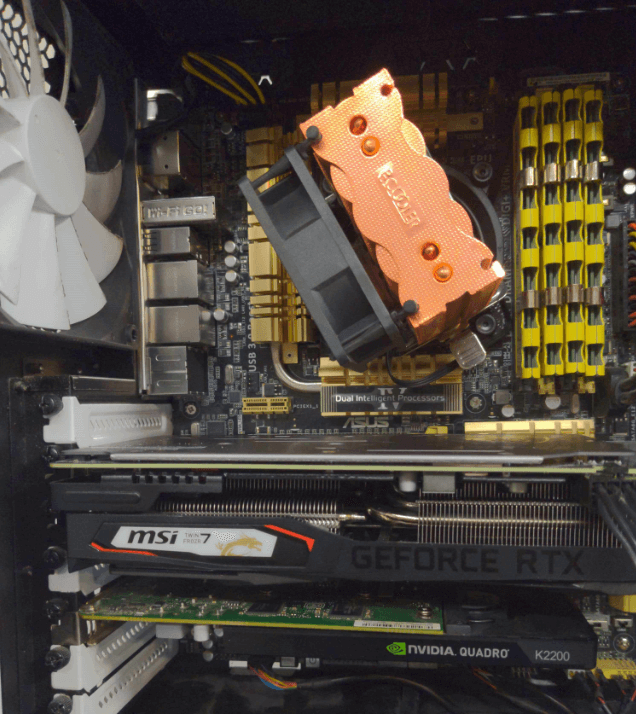
Once you pass the GPU through to a VM the host will not have access to the GPU anymore. This is why I recommend adding a second GPU to your host. Also, the GPU cannot be shared across guests.
Changes to Proxmox Server
SSH into your Proxmox Server and edit Grub
Update the "GRUB_CMDLIN_LINUX_DEFAULT" line. By default, it will be set to quiet.\

Intel CPU
For Intel CPUs add "intel_iommu=on", for example:
GRUB_CMDLINE_LINUX_DEFAULT="quiet intel_iommu=on"
Save changes and update grub:
update-grub
Reboot Proxmox Host
Edit Modules
add to /etc/modules
vfio vfio_iommu_type1 vfio_pci vfio_virqfd
On your Windows 10 VM you will want to make sure Remote Desktop is turned on. You may lose VNC access after you pass the GPU though.
Edit virtual machine's config file
cpu: host,hidden=1,flags=+pcid
from Proxmox add PCI device.
Block drivers from the host machine
edit /etc/modprobe.d/pve-blacklist.conf
block these drivers from being loaded
blacklist nvidiafb blacklist nvidia blacklist radeon blacklist nouveau
Full Video
SUPPORT MY WORK
This Article has been Republished with Permission from PhasedLogix